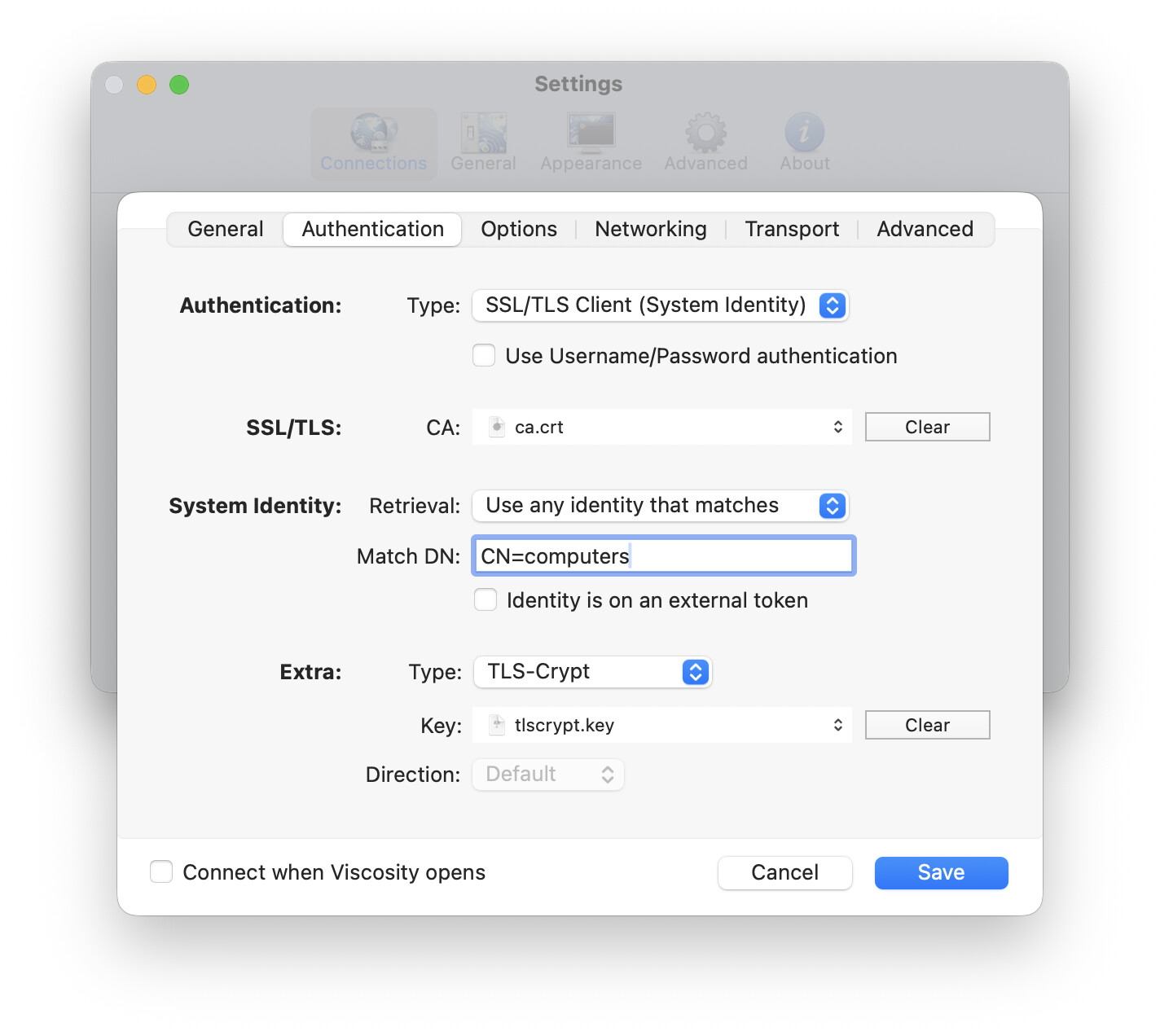
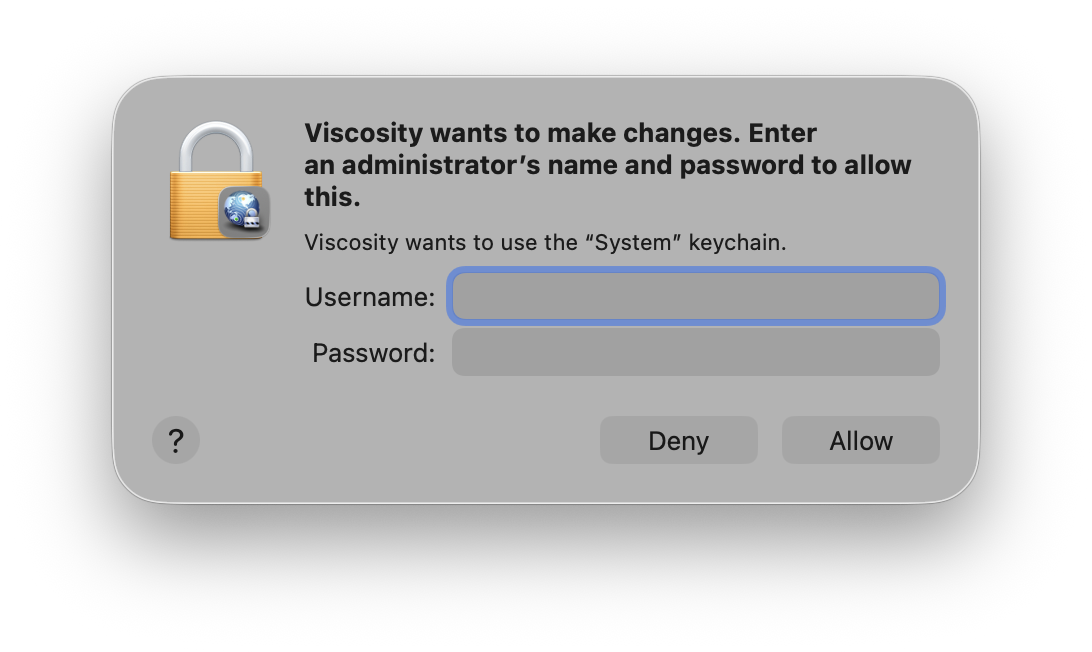
We are currently troubleshooting an issue with the latest Viscosity client version 1.11.5.
The Viscosity client is prompting for admin permission when a VPN connection is established and asks for admin permission to access the macOS Keychain.
The message is “Viscosity wants to make system changes. Enter an administrator’s name and password to allow this.”
We configured Viscosity to use any system identity that matches the the CN=computers and local macOS accounts are created with standard permission.
The certificate is generated with SCEPman and deployed with Jamf Pro.
Any support would be greatly appreciated to resolve the issue.
We actually have some detailed documentation on how to resolve this at the link below. Essentially it’ll be one of two issues: either the permissions on the identity in the Keychain need to be adjusted, or the Match DN is matching an unexpected identity. Please have a read and let us know if you’re still stuck.
It definitely sounds like a permissions issue on the identity then. A number of things I recommend checking:
Check the permissions on the deployed identity using Keychain Access and the steps listed in the previously linked article. Check that Viscosity is listed or that all applications have been granted access. If it isn’t, use the instructions in the previous article to try adding Viscosity and see if the prompt remains.
Check the permissions on the private key associated with the identity (expand it in Keychain Access). If the permissions are only being applied to the certificate and not the associated private key then you’ll still see the prompt.
Re-deploying or importing a certificate/identity won’t override the permissions if it already exists in the Keychain. The existing identity needs to be completely deleted first (making sure you follow the approach recommended in the previously linked article to prevent a detached private key). When making changes to how the identity is deployed or the permissions I recommend deploying to a completely fresh macOS install to rule out any issues (this can be inside a virtual machine).
Follow the steps in the previously linked article to import the identity using the command line or Keychain Access as a test. This should be done on a fresh macOS install, or ensure that all traces of the existing identity have been deleted from the Keychain first. This should allow you to ensure that Viscosity has been granted access to the identity and test that it works, before moving on to why your MDM deployment permissions aren’t working.
It should be noted that by default Viscosity will not have access to an identity deployed via MDM to the System keychain. macOS’s default permissions only allow some system services access. So it’s necessary to explicitly set the permissions so Viscosity can access the identity (typically by allowing All Applications) without a prompt. My guess is that for whatever reason this is not occurring, and only the default permissions are being used.
Make sure that Viscosity hasn’t been modified in any way that would break its code-signature. Sometimes this can be done accidentally (for example, by using a copy command that doesn’t maintain symlinks). You can verify a copy of Viscosity using the following commands: codesign --verify --deep --strict --verbose=4 /Applications/Viscosity.app spctl --assess --type execute --verbose=4 /Applications/Viscosity.app
Ultimately if you’re seeing the prompt it means Viscosity has not been granted permission to use the identity in the System Keychain. There isn’t anything that can be done about it from Viscosity’s end: the permissions on the identity need to be adjusted to allow access.
Cheers,
James
SparkLabs Newsletter
Thank you for being interested in keeping up with the latest news from us! Please double-check your email address below and then click the Subscribe button.